How to Schedule YouTube Videos for Beginners: 12 Tips
How to Schedule YouTube Videos for Beginners: 12 Tips

How to Schedule YouTube Videos for Beginners: 12 Easy Tips
Uploading videos consistently can be challenging when you are managing a YouTube channel by yourself. You may have school, work, family responsibilities, or limited time to edit and publish content. Fortunately, YouTube provides a scheduling feature that lets you prepare videos in advance and choose when they should become public.
Learning how to schedule YouTube videos for beginners can help you organize your content, maintain a consistent publishing routine, and avoid the pressure of uploading manually at the last minute.
In this guide, you will learn how to schedule YouTube videos through YouTube Studio, prepare your uploads correctly, choose a suitable publishing time, and avoid common scheduling mistakes.
1. Understand What YouTube Scheduling Means
YouTube scheduling allows you to upload a video ahead of time and set a future date and time for it to become public.
Instead of publishing immediately, you prepare the video and select the scheduling option in YouTube Studio.
This feature is useful for creators who want to plan their content in advance. For example, you could prepare several tutorials on the weekend and schedule them to publish throughout the following week.
Scheduling does not guarantee more views, but it can make your workflow easier and help you follow a realistic content calendar.
2. Prepare Your Video Before Uploading
Before scheduling a video, make sure your content is ready.
Check the video from beginning to end to confirm that the audio is clear, the visuals look correct, and there are no accidental editing mistakes.
Prepare these elements in advance:
- A clear, relevant video title
- A useful description
- A custom thumbnail, if appropriate
- Relevant playlist selection
- Captions or subtitles, if available
- Audience and visibility settings
Preparing these details before scheduling reduces the chance of rushing through important settings.
3. Open YouTube Studio
To schedule a video, open YouTube Studio in your web browser and sign in to the correct YouTube account.
Follow these steps:
- Visit YouTube Studio.
- Click Create in the upper-right corner.
- Select Upload videos.
- Choose the video file from your computer.
- Wait for the upload process to begin.
You can continue completing the video’s details while YouTube processes the upload.
Keep the browser open if the upload is still in progress, and confirm that YouTube has finished processing the video before relying on its scheduled publication.
4. Add Your Video Details
After selecting your video, YouTube Studio will guide you through the upload details.
Enter a title that accurately describes the content. Write a description explaining what viewers will learn, and add a relevant thumbnail.
You can also select a playlist, complete the audience settings, and provide other requested information.
For SEO, use your main topic naturally in the title and description. Avoid stuffing the description with repeated keywords.
The goal is to help viewers understand the video before clicking, while ensuring that the information accurately represents what they will watch.
5. Complete the Required Checks
YouTube Studio may display checks related to copyright or other upload considerations.
Review any available results before scheduling your video. These checks can help identify issues, but a completed check does not guarantee that a video will never receive a copyright claim or other restriction later.
Also review the audience setting and select the appropriate option based on whether the content is made for kids.
Make sure you have the necessary rights to use the footage, music, images, and other materials included in your video.
Taking a few minutes to review these details can help prevent avoidable publishing problems.
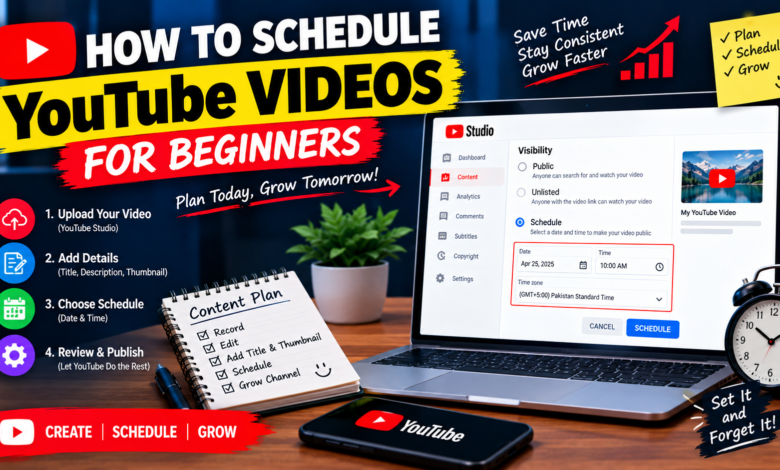
6. Select the Schedule Option
Once you reach the visibility step, you can choose when your video should become public.
Follow these general steps:
- Open the Visibility section.
- Select Schedule instead of publishing immediately.
- Choose the publication date.
- Choose the publication time.
- Confirm the correct time zone, where shown.
- Save or schedule the video.
The exact interface may change as YouTube updates YouTube Studio.
After scheduling, return to your channel’s content list and confirm that the video appears with the intended scheduled date and time.
7. Choose a Realistic Publishing Time
Choosing a suitable time can help you organize your uploads, but there is no single best time for every channel.
Consider your audience’s location, viewing habits, and the type of content you create.
You can review YouTube Studio’s Audience analytics for information about when your viewers are on YouTube, if that report is available.
Try different publishing times and compare similar videos over consistent periods.
Remember that useful content, a clear title, an appealing thumbnail, and viewer satisfaction are important regardless of the time you choose.
8. Create a Weekly Upload Schedule
A weekly schedule helps you plan your content without making every upload a last-minute task.
For example, you might publish tutorials on Tuesday and Friday if that routine fits your available time.
Your schedule should reflect what you can maintain consistently, rather than copying another creator’s upload frequency.
Plan topics in advance and allow enough time for research, scripting, recording, editing, and quality checks.
If you are a beginner, starting with one well-prepared video each week may be more practical than committing to daily uploads that become difficult to sustain.
9. Schedule Multiple Videos in Advance
You can prepare more than one video and assign each a different publication date and time.
This approach is helpful when you batch-create content. For example, you might record three related tutorials in one session and schedule them across the following weeks.
Before scheduling multiple uploads, double-check each video’s title, thumbnail, description, audience settings, and publication time.
Avoid scheduling several videos too close together without considering your audience and content plan.
The purpose is to reduce repetitive work and create a manageable publishing routine.
10. Manage or Change a Scheduled Video
Plans can change after you schedule a video.
To review a scheduled upload, open YouTube Studio and go to the Content section. Find the video and open its details or visibility settings.
Depending on the available options, you can adjust its scheduled date or time, or change its visibility settings.
Always save your changes and confirm that the updated schedule appears correctly.
If you need to publish a video immediately, review the visibility options carefully before making the change. Do not assume a scheduled video is public simply because the upload and processing have finished.
11. Avoid Common Scheduling Mistakes
Beginners sometimes schedule videos without checking the final details.
Avoid these common mistakes:
- Selecting the wrong date or time
- Overlooking the time zone
- Forgetting to add a thumbnail
- Choosing incorrect audience settings
- Scheduling before processing is complete
- Using music or footage without appropriate rights
- Setting an upload frequency you cannot maintain
It is also wise to check that the video is scheduled for the intended audience and that its title and description contain no unfinished notes or editing instructions.
A quick final review can prevent many avoidable errors.
12. Track Results and Improve Your Routine
Scheduling helps you organize publication, while Analytics helps you understand performance.
After your videos go public, review their views, impressions, click-through rate, watch time, and audience retention.
Compare similar videos and look for patterns in topics, publishing times, and audience response.
If a particular schedule is convenient and your videos perform well, continue testing it. If it becomes difficult to maintain, adjust it to fit your workflow.
Do not judge the success of scheduling only by views. Its main benefit is helping you prepare content in advance and publish according to a plan.
Final Thoughts
Learning how to schedule YouTube videos for beginners is a simple way to make channel management more organized.
Prepare your video, upload it through YouTube Studio, complete the details and checks, select Schedule, and confirm the date and time. You can also prepare multiple videos in advance and adjust their schedules when necessary.
Start with a realistic publishing routine and improve it as you learn more about your audience. Scheduling will not guarantee viral results, but it can save time, reduce last-minute pressure, and help you maintain a consistent content strategy.