How to Create a YouTube Community Post: 12 Tips
How to Create a YouTube Community Post: 12 Tips

How to Create a YouTube Community Post: 12 Easy Tips
YouTube videos are not the only way to connect with your audience. Community posts let eligible creators share updates, ask questions, run polls, and interact with viewers between video uploads.
If you want to keep your audience engaged without producing a full video every time, learning how to create a YouTube Community post can be a useful part of your channel strategy.
Community posts can help you learn what viewers enjoy, announce upcoming content, share images, and encourage conversations. However, getting good results depends on choosing relevant topics and making your posts easy to understand.
In this guide, you will learn how to create a Community post, explore the available formats, and use practical strategies to connect with your YouTube audience.
1. Understand YouTube Community Posts
YouTube Community posts are updates that eligible creators can share with their audience through YouTube.
Depending on the features available to your channel, posts may include text, images, polls, quizzes, GIFs, or video links.
You can use them to ask viewers what they want to watch next, share a quick update, or start a discussion related to your channel’s topic.
For example, a YouTube growth channel could ask viewers which challenge they face most often: low views, low watch time, or difficulty finding video ideas.
Community posts are useful because they give viewers another way to interact with your channel beyond watching videos.
2. Open YouTube and Sign In
To create a Community post, sign in to the correct YouTube account.
You can use YouTube through a web browser on your computer or through the YouTube mobile app, depending on the features available to your account.
Make sure you are using the channel where you want to publish the post. If you manage multiple channels, check the profile icon and switch accounts if necessary.
Your available posting options may vary according to YouTube’s current interface and your channel’s access to particular features.
3. Find the Create Post Option
On a computer, open YouTube and select the Create option, usually represented by a camera or plus-style icon. If the Community post option is available, select it to begin composing your update.
You may also find a Posts section in YouTube Studio or other channel-management areas, depending on the current interface.
On mobile, open the YouTube app and look for the Create option.
If you cannot find the post option, check whether the feature is available to your channel and whether you are signed in to the correct account.
4. Write a Clear and Interesting Message
Your post should have one main purpose. Avoid writing a long paragraph when a short, direct message can communicate the idea more clearly.
For example, instead of writing a general update such as “New video coming soon,” you could write:
“I’m preparing a new tutorial about improving YouTube thumbnails. Which thumbnail problem should I cover first?”
This message tells viewers what to expect and gives them a reason to respond.
Use simple language, make the topic clear, and ensure the post matches your channel’s audience.
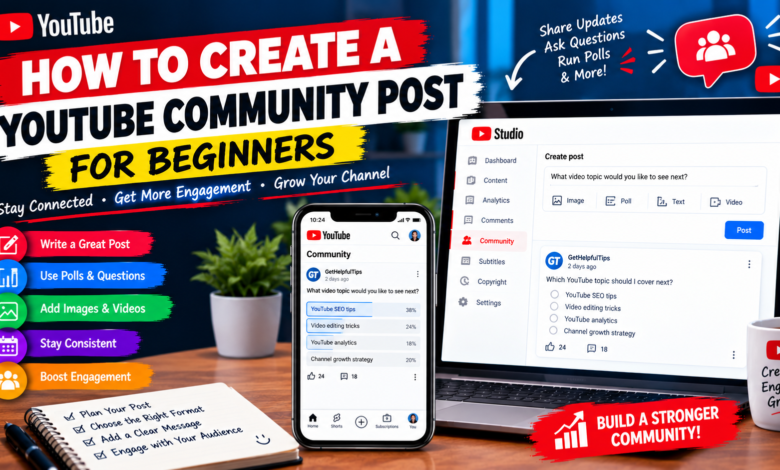
5. Create a Poll to Ask Your Audience
Polls are useful when you want viewers to choose between several options.
For example, a YouTube growth channel could ask:
What is your biggest YouTube challenge?
- Getting more views
- Improving watch time
- Finding video ideas
- Gaining subscribers
Keep the options short and easy to understand. Choose answers that will help you learn something useful about your audience.
You can use the results to guide future videos, create tutorials around common problems, or identify subjects that deserve more detailed explanations.
Do not treat a poll as a perfect representation of every subscriber. It reflects the people who choose to participate.
6. Add Images or Other Supported Media
Images can make a Community post more visually interesting.
Depending on the options available, you might share a relevant image, a behind-the-scenes photo, a simple graphic, or a preview of an upcoming video.
For example, if you run a technology channel, you could share a screenshot of a project you are working on and ask viewers what they would like to learn about it.
Use images that support the message rather than adding visuals without a clear purpose.
Check that your images are appropriate, readable on mobile, and that you have permission to use them.
7. Share a Video Through a Community Post
Community posts can also help you direct viewers toward relevant videos.
You might share a new upload, recommend an older tutorial, or connect viewers with another video that answers a related question.
For example, after publishing a tutorial about YouTube Analytics, you could create a post asking viewers which metric they find confusing and include the relevant video.
Explain why the video may be useful instead of posting a link without context.
Avoid sharing unrelated videos simply to generate clicks. A relevant recommendation provides a better experience for your audience.
8. Ask Questions That Encourage Replies
Questions can help start meaningful conversations.
Instead of asking a broad question such as “What do you think?”, make the question specific enough that viewers know how to respond.
Examples include:
- Which video topic should I explain next?
- What is your biggest challenge with YouTube SEO?
- Do you prefer short tutorials or detailed guides?
- Which editing task takes you the most time?
Reply to useful comments when possible. Conversations can reveal audience needs and provide ideas for future content.
Avoid asking the same question repeatedly without offering something new.
9. Publish Posts Consistently
Consistency can help your audience recognize that your channel is active, but you do not need to publish Community posts every day.
Choose a realistic frequency that fits your channel and available time.
For example, you might share a poll before planning your next video, post an update when a new upload is ready, and ask a follow-up question afterward.
Focus on relevance rather than quantity. A useful post that starts a genuine discussion is more valuable than several repetitive updates.
Monitor your audience’s response and adjust your posting routine over time.
10. Choose Topics Related to Your Channel
Community posts should support the overall purpose of your channel.
If your content focuses on YouTube growth, useful post ideas might include video topic polls, thumbnail questions, SEO tips, creator challenges, or updates about upcoming tutorials.
Staying connected to your main subject helps viewers understand why they should follow your channel.
You can experiment with different formats, but avoid filling your Community feed with unrelated promotions that offer little value to your audience.
Use viewer responses to identify which topics deserve more attention.
11. Review Your Community Post Performance
After publishing, check the available analytics or engagement information for your post.
Depending on the reporting options available, you may be able to review impressions, likes, comments, or other engagement signals.
Look for patterns rather than judging a post from one result.
For example, polls may attract more responses than text updates, while posts featuring useful video links may generate interest in a particular topic.
Use these observations to improve future posts. Remember that engagement can vary according to the topic, audience, and timing.
12. Avoid Common Community Post Mistakes
A few simple mistakes can make your posts less effective.
Avoid these habits:
- Publishing unrelated updates too frequently.
- Writing messages that are difficult to understand.
- Asking vague questions.
- Sharing links without explaining their value.
- Using images you do not have permission to publish.
- Repeating the same poll too often.
- Ignoring meaningful viewer feedback.
Before publishing, read your post once more. Make sure it has a clear purpose and provides something useful or interesting to your audience.
Final Thoughts
Learning how to create a YouTube Community post gives you another way to communicate with viewers between video uploads.
Sign in to your channel, find the post creation option, write a clear message, and select a suitable format such as a poll, image, or video link when available.
Start with simple questions and relevant updates. Then review the responses to discover what your audience wants to learn or discuss.
Community posts do not guarantee more video views, but they can help you maintain conversations, understand your audience, and plan content around real viewer interests.