
How to Organize YouTube Channel Sections: 12 Easy Tips
How to Organize YouTube Channel Sections: 12 Easy Tips

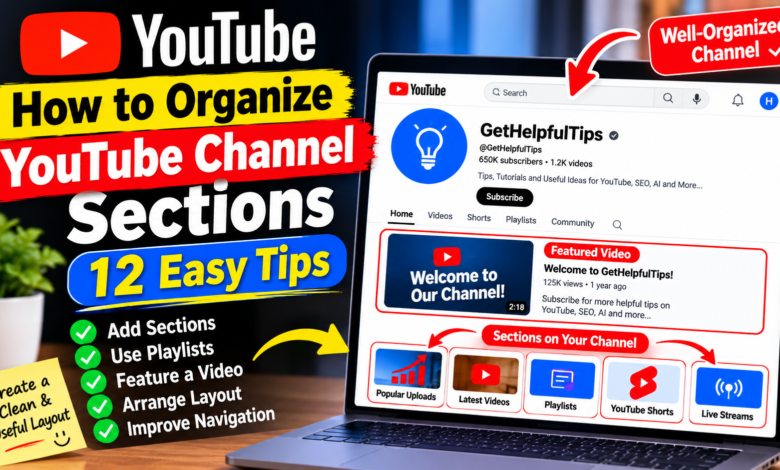
How to Organize YouTube Channel Sections: 12 Easy Tips
A well-organized YouTube channel makes it easier for visitors to discover your videos and understand what your content is about. When someone visits your channel homepage, they should quickly find useful videos, popular uploads, playlists, and other content that matches their interests.
Learning how to organize YouTube channel sections can improve the browsing experience and help viewers explore more of your content. Instead of displaying videos randomly, you can arrange them into meaningful sections based on topics, formats, or viewer interests.
In this guide, you will learn how to customize your YouTube channel layout, add sections, organize playlists, and create a homepage that is easy to navigate.
What Are YouTube Channel Sections?
YouTube channel sections are organized rows of content displayed on your channel’s Home tab. They help you group and present videos in different ways.
For example, you can create sections for:
- Popular uploads
- Latest videos
- YouTube Shorts
- Playlists
- Live streams
- Videos about specific topics
These sections allow visitors to find relevant content without searching through your entire video library. A useful layout is particularly important for channels that publish tutorials, educational videos, reviews, or content covering several subjects.
1. Open YouTube Studio
The first step is to open YouTube Studio using the account connected to your channel.
Follow these steps:
- Visit YouTube in your browser.
- Sign in to your creator account.
- Click your profile picture.
- Select YouTube Studio.
- Open the customization area from the left-side menu.
- Select the Home tab if it is available.
The Home tab customization area is where you can manage the content sections displayed on your channel homepage. YouTube may update its interface, so some labels or menu positions can change.
2. Enable Your Channel Home Tab
Before organizing sections, make sure your channel homepage is enabled.
Open the Home tab settings in YouTube Studio. If the option is available, enable the Home tab so visitors can see your customized channel layout.
The Home tab acts like the front page of your channel. It can display featured content and multiple sections that introduce viewers to your videos.
If your channel does not show the expected options, check that you are using the correct channel account and explore the latest YouTube Studio customization interface.
3. Add a Section to Your Channel Homepage
Adding sections allows you to organize your content into separate rows.
To add a section:
- Open YouTube Studio.
- Go to Customization.
- Select the Home tab.
- Find the section management area.
- Click Add section, if available.
- Choose the type of content you want to display.
- Save or publish your changes.
Depending on the available options, you may be able to display videos, Shorts, live streams, playlists, or other content groups.
Choose sections that help visitors understand your channel rather than adding every possible option.
4. Create a Latest Videos Section
A Latest Videos section helps returning visitors find your newest uploads.
This is useful for channels that publish regularly because viewers can quickly see what has been added recently.
For example, a technology channel could use this section to highlight its latest tutorials about software, mobile apps, AI tools, and internet tips.
Keep this section near the top of your homepage so new visitors can easily discover your recent content.
5. Highlight Your Popular Uploads
Popular videos can introduce new visitors to content that has already attracted audience interest.
YouTube may provide a Popular uploads section that displays videos based on popularity.
This can help visitors discover useful tutorials or videos they might otherwise miss. However, popularity does not always mean a video is the most relevant choice for every visitor.
Review the videos shown in this section occasionally and make sure your channel homepage still represents the topics you currently cover.
6. Organize Videos Into Playlists
Playlists are one of the most useful ways to organize a YouTube channel.
Instead of making viewers search for individual videos, group related uploads into collections.
For example, a channel about YouTube growth could create playlists such as:
- YouTube SEO for Beginners
- YouTube Analytics Tutorials
- YouTube Channel Growth Tips
- YouTube Video Editing Guides
- Free AI Tools for Creators
Give each playlist a clear title and add videos that genuinely belong together. You can then display selected playlists as separate sections on your channel homepage.
7. Create Separate Sections for Different Topics
If your channel covers several subjects, separate sections can make browsing easier.
For example, a technology channel might publish tutorials about AI, software, online tools, and social media. Displaying all these videos in one large collection can make the homepage feel confusing.
Instead, organize the content into topic-based playlists and sections.
Use clear names such as AI Tools and Tutorials, Internet Tips, or Software Guides. This helps visitors understand what each collection contains before opening it.
8. Feature a Video for New Visitors
A featured video can introduce your channel to people who have not subscribed yet.
YouTube provides channel customization options for featured content, although the exact settings may vary.
Choose a video that explains what your channel offers and gives new visitors a reason to explore more content.
A useful introduction should be short, clear, and relevant to your channel’s main subject. Avoid featuring an unrelated video simply because it received many views.
9. Arrange Sections in a Logical Order
The order of your channel sections affects how visitors explore your content.
Place your most important collections near the top. For example, a beginner-focused educational channel could use this order:
- Channel introduction or featured video
- Latest uploads
- Popular uploads
- Beginner tutorials
- Topic-based playlists
- Shorts or live streams
This is only an example. Your ideal arrangement depends on the content you publish and what visitors are most likely to need.
If YouTube provides drag-and-drop controls, use them to move sections into your preferred order.
10. Use Clear and Descriptive Playlist Names
Playlist names help visitors understand what they will find inside each collection.
Avoid vague names such as “My Videos,” “Collection 1,” or “New Uploads.” Instead, use titles that clearly describe the topic.
For example:
- Better: YouTube SEO Tips for Beginners
- Less clear: My SEO Videos
Clear playlist titles improve navigation and help viewers identify relevant content. Keep names accurate and avoid adding unnecessary keywords that make them difficult to read.
11. Review Your Channel Layout on Mobile
Many YouTube viewers browse channels using smartphones. A layout that looks organized on a computer should also be easy to explore on a smaller screen.
Open your channel homepage on a mobile device and check:
- Whether important sections are easy to find.
- Whether playlist titles are readable.
- Whether the featured video is relevant.
- Whether sections appear in a sensible order.
- Whether the content looks consistent.
If something feels confusing, return to YouTube Studio and adjust your layout.
12. Update Your Channel Sections Regularly
Your channel homepage should change as your content library grows.
For example, when you publish a new tutorial series, create a playlist for it and consider adding that playlist to your homepage.
Remove outdated or unnecessary sections when they no longer help visitors. You can also update featured videos and rearrange playlists as your channel’s main topics develop.
You do not need to redesign your homepage every week. Review it occasionally and make changes when they improve the visitor experience.
Common Mistakes to Avoid
When organizing YouTube channel sections, avoid these common mistakes:
- Adding too many sections: Too many rows can make your homepage difficult to navigate.
- Using unclear titles: Visitors should understand what each section contains.
- Mixing unrelated videos: Group content according to relevant topics.
- Ignoring mobile users: Check how your channel looks on smartphones.
- Keeping outdated collections: Update your homepage when your content changes.
- Featuring irrelevant videos: Choose content that represents your channel accurately.
A simple, organized homepage is usually more useful than a crowded layout filled with unnecessary sections.
Conclusion
Learning how to organize YouTube channel sections can make your channel easier to explore and help visitors discover more of your content. By using playlists, highlighting popular uploads, featuring relevant videos, and arranging sections logically, you can create a professional-looking channel homepage.
Start with a few important sections, use clear playlist names, and review your layout on both desktop and mobile devices. As your channel grows, update the sections to reflect your latest content and your audience’s interests.
Remember, the goal is not to add as many sections as possible. It is to help viewers find the right videos quickly and enjoy exploring your channel.