How to Add Featured Channels on YouTube: Step-by-Step Guide
How to Add Featured Channels on YouTube: Step-by-Step Guide

How to Add Featured Channels on YouTube: Step-by-Step Guide
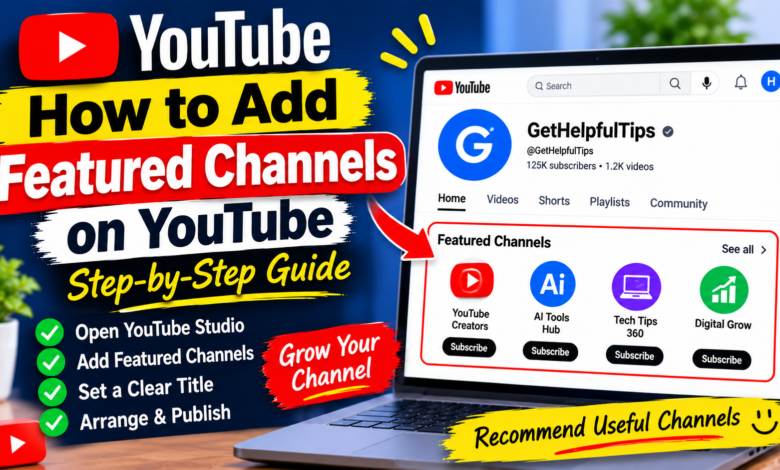
Adding featured channels to your YouTube homepage is a useful way to recommend other creators, highlight related content, and make your channel more helpful for visitors. If you collaborate with other YouTubers or want to recommend channels in your niche, this feature can help visitors discover them easily.
Learning how to add featured channels on YouTube is simple when you know where to find the correct settings in YouTube Studio. You can choose channels you want to recommend and display them in a dedicated section on your channel homepage.
In this guide, you will learn how to add featured channels, customize the section, manage recommendations, and avoid common mistakes.
What Are Featured Channels on YouTube?
Featured channels are other YouTube channels that you recommend on your own channel homepage. They appear in a dedicated section, allowing visitors to discover creators whose content may interest them.
For example, a technology channel might feature channels about:
- Technology news
- AI tools and tutorials
- Software guides
- Mobile phone reviews
- Digital marketing
This feature is useful for creators who collaborate with others, operate multiple channels, or want to recommend helpful resources to their audience.
Keep in mind that featuring another channel does not automatically promote your videos or guarantee additional subscribers. It simply makes the recommended channel easier for your visitors to find.
1. Sign In to Your YouTube Account
First, open YouTube using the account connected to your channel.
Follow these steps:
- Visit YouTube in your web browser.
- Click your profile picture.
- Make sure you have selected the correct account.
- Open your channel or go directly to YouTube Studio.
If you manage multiple channels, double-check the active channel before making changes. This helps prevent you from adding featured channels to the wrong homepage.
2. Open YouTube Studio
YouTube Studio provides the tools you need to manage your channel and customize its appearance.
To open it:
- Sign in to YouTube.
- Click your profile picture.
- Select YouTube Studio.
- Wait for the Studio dashboard to load.
- Find Customization in the left-side menu.
The Customization area allows you to manage different parts of your channel’s appearance, including your homepage layout and other available branding options.
3. Go to the Home Tab Settings
After opening Customization, look for the Home tab.
This area controls the sections visitors see when they open your channel homepage.
You may find options for:
- Featured videos
- Latest uploads
- Popular uploads
- Playlists
- Shorts
- Other channel sections
To add featured channels, look for the section management area and choose the option to add a section.
YouTube occasionally updates its interface, so the exact labels or locations may look slightly different.
4. Select the Featured Channels Option
In the section options, look for Featured channels.
Select this option to create a section where you can recommend other creators.
If the option is available, YouTube will provide a way to search for channels or enter the channel details you want to feature.
Choose channels that are relevant to your audience. For example, if your channel publishes YouTube tutorials, you could recommend creators who regularly share useful tips about video editing, content creation, or channel management.
5. Search for Channels You Want to Feature
Once you open the Featured channels section, search for the channel you want to recommend.
You can use the channel name or other available identifying information to locate the correct creator.
Before selecting a result, check:
- The channel name
- Its profile picture
- Its content category
- Whether it is the correct creator
Some channels may have similar names, so do not select a result without checking it carefully.
Choose channels that publish useful, relevant, and appropriate content for your viewers.
6. Add Multiple Featured Channels
You do not have to recommend only one channel. You can add multiple channels to your featured section, depending on the options available in YouTube Studio.
For example, a technology channel could feature:
- A channel about AI tutorials.
- A channel about software reviews.
- A channel about mobile technology.
- A channel about digital marketing.
However, avoid adding too many unrelated channels. A smaller collection of carefully selected recommendations is usually easier for visitors to understand.
7. Give Your Featured Section a Clear Title
A clear section title helps visitors understand why you are recommending particular channels.
Depending on the available customization options, you may be able to edit the section title.
Some useful title ideas include:
- Recommended Channels
- My Favorite Creators
- Technology Channels
- Helpful YouTube Creators
- Channels Worth Following
Choose a short title that matches the channels you have selected. Avoid using a misleading heading that does not describe the recommendations.
8. Arrange Your Channel Homepage
After adding featured channels, review how the section fits into your overall homepage layout.
If YouTube provides drag-and-drop controls, you can move sections into a suitable order.
For example, an educational channel might arrange its homepage like this:
- Channel trailer or featured video
- Latest uploads
- Popular uploads
- Educational playlists
- Featured channels
This arrangement helps visitors discover your own content before exploring recommended creators.
There is no single perfect layout for every channel. Choose an order that makes sense for your content and audience.
9. Publish Your Changes
After selecting the channels and arranging the section, review your settings.
Check that:
- You selected the correct channels.
- The section title is clear.
- Your recommendations are relevant.
- The section appears in the position you want.
When everything looks correct, click Publish if YouTube Studio provides that option.
Your changes may take a short time to appear. Visit your channel homepage afterward to confirm that the featured channels section is visible.
10. Check Your Featured Channels on Mobile
Many people visit YouTube channels using smartphones, so it is important to check how your recommendations appear on mobile devices.
Open your channel using the YouTube mobile app or a mobile browser.
Review the homepage and confirm that:
- The featured section is easy to find.
- Channel names and profile images are visible.
- Recommendations are relevant.
- Your homepage remains easy to navigate.
If something looks confusing, return to YouTube Studio and adjust your channel layout.
11. Update Your Featured Channels Regularly
Your recommendations should remain useful as your channel develops.
Some creators may stop publishing, change their content direction, or become less relevant to your audience. Review your featured channels occasionally and remove recommendations that no longer make sense.
You can also add new creators when you discover useful channels in your niche.
A regular review helps keep your homepage organized and ensures visitors see recommendations that match your channel’s current focus.
12. Choose Relevant Channels for Your Audience
The most important part of featuring channels is selecting the right recommendations.
Do not choose channels only because they have millions of subscribers. Consider whether their videos offer something valuable to your viewers.
For example, if your channel focuses on YouTube growth, recommend creators who publish helpful content about:
- YouTube SEO
- Video editing
- Content planning
- Creator tools
- Audience engagement
Relevant recommendations can make your channel homepage more useful and help visitors discover related creators.
Common Mistakes to Avoid
When learning how to add featured channels on YouTube, avoid these mistakes:
- Adding unrelated channels: Choose recommendations that match your niche.
- Selecting the wrong creator: Check the channel name and profile before adding it.
- Adding too many channels: Keep your recommendations focused.
- Using unclear section titles: Choose a title that explains what visitors will find.
- Ignoring outdated recommendations: Review your featured channels occasionally.
- Forgetting to publish changes: Save or publish your updated homepage when required.
Avoiding these mistakes can help you maintain a clean and useful channel homepage.
Conclusion
Learning how to add featured channels on YouTube can help you recommend other creators and make your channel homepage more useful. By opening YouTube Studio, accessing the Home tab settings, adding a Featured channels section, and selecting relevant creators, you can create a helpful collection of recommendations.
Choose channels that match your audience’s interests, use a clear section title, and review your recommendations regularly. A well-organized homepage makes it easier for visitors to explore your content and discover other useful creators.
Remember, featured channels are a recommendation feature, not a guaranteed way to increase views or subscribers. Focus on providing relevant suggestions that genuinely benefit your audience.