How to Create a YouTube Community Post: 12 Easy Tips
How to Create a YouTube Community Post: 12 Easy Tips

How to Create a YouTube Community Post: 12 Easy Tips
YouTube Community posts are a useful way to connect with your audience without uploading a full video. You can share text updates, images, polls, quizzes, and video links to keep viewers interested in your channel. Whether you are a beginner or an experienced creator, learning how to create a YouTube Community post can help you build stronger relationships with subscribers and encourage more interaction.
In this guide, you will learn how to create a YouTube Community post on desktop and mobile, what types of posts you can publish, and how to make your updates more engaging.
What Is a YouTube Community Post?
A YouTube Community post is an update you publish on your channel to communicate with your audience. Unlike regular videos, Community posts do not require recording, editing, or uploading a complete video.
Depending on the features available to your channel, you may be able to publish text, images, polls, quizzes, and video links. These posts can appear in viewers’ Home feeds, the Subscriptions feed, or your channel’s Posts section.
Community posts are particularly useful when you want to ask questions, announce upcoming videos, share behind-the-scenes content, or learn what your audience wants to watch.
1. Open YouTube and Sign In
The first step is to sign in to the YouTube account connected to your channel.
On a computer, visit YouTube in your browser and confirm that you have selected the correct channel. If you manage multiple channels, double-check your profile before publishing.
On a mobile device, open the YouTube app and sign in with your creator account. Make sure your app is updated so you can access the latest available features.
2. Find the Create Post Option
Once you are signed in, look for the option to create a post.
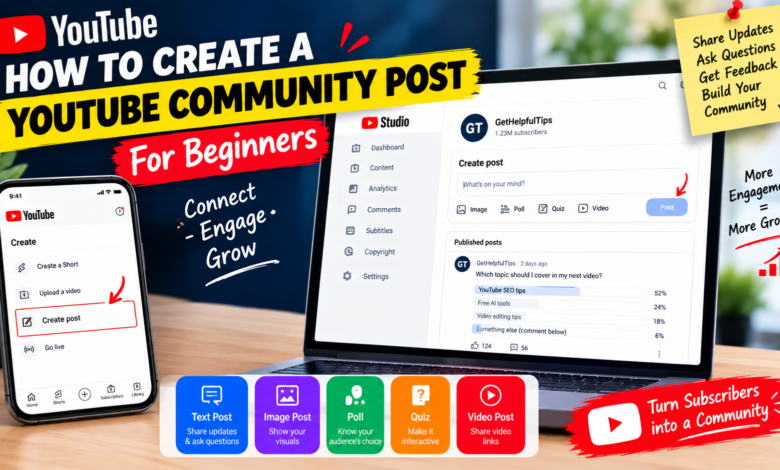
On desktop:
- Open YouTube.
- Click the Create (+) button near the top of the page.
- Select Create post, if available.
- Choose the type of content you want to publish.
On mobile:
- Open the YouTube app.
- Tap the Create (+) button.
- Look for the Post option.
- Select it to open the post editor.
YouTube’s interface may change over time, and some options can vary by device, channel, or account eligibility. If you cannot find the Post option, check YouTube’s current feature requirements and channel settings.
3. Write an Interesting Text Post
A text post is one of the simplest ways to start a conversation with your audience. You can share an update, ask a question, or tell viewers what you are working on.
For example, a technology channel could publish:
“Which topic should I cover in my next video: free AI tools, YouTube SEO, or video editing tips?”
This gives viewers a clear reason to respond.
Keep your message focused and easy to understand. Use short paragraphs, natural language, and a friendly tone. Avoid writing a long announcement when a few clear sentences will do.
4. Add an Image to Your Community Post
Images can make your updates more noticeable and help explain your message visually.
You could share a behind-the-scenes photo, a preview of your next video, a useful graphic, or a screenshot of a project you are working on.
To add an image, select the image or media option in the post editor and upload a suitable file. Review the preview before publishing.
Choose clear, relevant images that are easy to view on a phone. Avoid overcrowding the image with text, and only use pictures you own or have permission to share.
5. Create a Poll to Engage Viewers
Polls are an effective way to ask your audience for opinions. They allow viewers to participate with a quick response instead of writing a comment.
For example, a creator could ask:
“What type of video should I upload next?”
- YouTube growth tips
- Free AI tools
- SEO tutorials
- Video editing guides
To create a poll, open the post editor, choose the poll format if it is available, enter your question, add answer choices, and review the post.
Use polls to understand viewers’ interests and plan relevant content. Remember that poll results reflect the people who respond, not necessarily your entire audience.
6. Share a YouTube Video Link
Community posts can help you draw attention to an existing video or announce a new upload.
You can share a link to your latest video, recommend an older tutorial, or tell viewers why a particular video may be useful.
Instead of posting only a link, add a short message that explains its value.
For example:
“Struggling to improve your YouTube video titles? Watch my latest tutorial for practical tips you can try today.”
Make sure the link works and the message accurately describes the video. Avoid repeatedly sharing the same link without adding anything useful for your audience.
7. Write a Strong Opening Line
The first sentence of your post should quickly communicate why viewers might want to read it.
A vague update such as “Hello everyone” may not give people a reason to engage. A specific question or helpful announcement can be more effective.
Try openings such as:
- “What is your biggest challenge when growing a YouTube channel?”
- “A new tutorial about YouTube SEO is coming soon!”
- “Which free editing tool do you recommend for beginners?”
- “Would you like a step-by-step guide to creating thumbnails?”
Choose an opening that matches your post’s purpose. Do not use misleading claims or promise something the post does not deliver.
8. Publish Your Community Post
Before publishing, review the complete post.
Check your spelling, links, images, poll options, and formatting. Make sure your message is appropriate for your audience and follows YouTube’s Community Guidelines.
When everything looks correct, click or tap Post to publish it. If the interface offers scheduling for your account and post type, you may also be able to choose a future publishing time.
After publishing, visit your channel’s Posts section to confirm that the update appears correctly.
9. Post at a Suitable Time
The timing of a Community post may affect how many viewers see it, although no particular time guarantees engagement.
You can use YouTube Analytics to learn when your audience is active, if that report is available for your channel. Consider your viewers’ time zones and their usual viewing habits.
Experiment with different posting times and compare the results. For example, you might test an afternoon post against an evening post over several weeks.
Evaluate the results using meaningful signals such as votes, comments, likes, and other available engagement data. Avoid assuming that one successful post establishes the best time for every future update.
10. Respond to Comments and Feedback
Creating a post is only the beginning of the conversation. When viewers leave thoughtful comments, responding can help make your channel feel more welcoming.
Thank viewers for useful suggestions, answer relevant questions, and use constructive feedback to plan future content.
You do not need to reply to every comment immediately. Focus on genuine conversations and follow YouTube’s policies when moderating inappropriate or spam comments.
11. Maintain a Consistent Posting Schedule
Consistency can help viewers become familiar with your channel updates. However, publishing too many low-value posts may overwhelm your audience.
Start with a manageable schedule, such as one or two useful posts per week. You could alternate between polls, video announcements, educational tips, and questions.
For example:
- Monday: Ask viewers which topic they want next.
- Wednesday: Share a practical tip related to your niche.
- Friday: Announce a new video or recommend a useful older upload.
Treat this as a starting point rather than a strict rule. Adjust your schedule based on your audience’s response and the time you can realistically commit.
12. Track Results and Improve Future Posts
After publishing several Community posts, review their performance. Depending on the analytics available, examine likes, comments, poll participation, and other engagement indicators.
Look for patterns. Do viewers respond more often to questions, images, polls, or video announcements? Are certain topics attracting more meaningful conversations?
Use these observations to improve your next posts. Test one change at a time so you can better understand what may have influenced the results.
Remember that Community posts are one part of a wider channel strategy. Helpful videos, clear titles, strong thumbnails, and valuable content remain important for building an audience.
Common Mistakes to Avoid
When learning how to create a YouTube Community post, avoid these common mistakes:
- Posting without a clear purpose: Give viewers a useful update, question, or reason to participate.
- Overpromoting videos: Balance video links with helpful tips, polls, and conversations.
- Using irrelevant images: Choose visuals that support your message.
- Ignoring audience feedback: Review responses and use them to guide future content.
- Expecting instant growth: Community posts may support engagement, but results vary.
- Sharing misleading information: Keep announcements accurate and follow YouTube’s policies.
Conclusion
Learning how to create a YouTube Community post is a simple way to communicate with viewers between video uploads. You can publish text updates, add images, create polls, share video links, and ask questions that help you understand your audience.
Start with one useful post, keep your message clear, and respond to genuine feedback. Over time, review which formats work best for your channel and build a posting routine you can maintain.
Community posts work best when they provide real value rather than simply asking viewers to click or subscribe. Focus on helpful conversations, consistent updates, and content your audience genuinely cares about.
Focus Keyword: how to create a YouTube Community post
SEO Title: How to Create a YouTube Community Post: 12 Easy Tips
Meta Description: Learn how to create a YouTube Community post with step-by-step instructions for polls, images, video links, audience engagement, and useful updates.
URL Slug: how-to-create-a-youtube-community-post