How to Edit YouTube Subtitles Automatically: Easy Guide
How to Edit YouTube Subtitles Automatically: Easy Guide

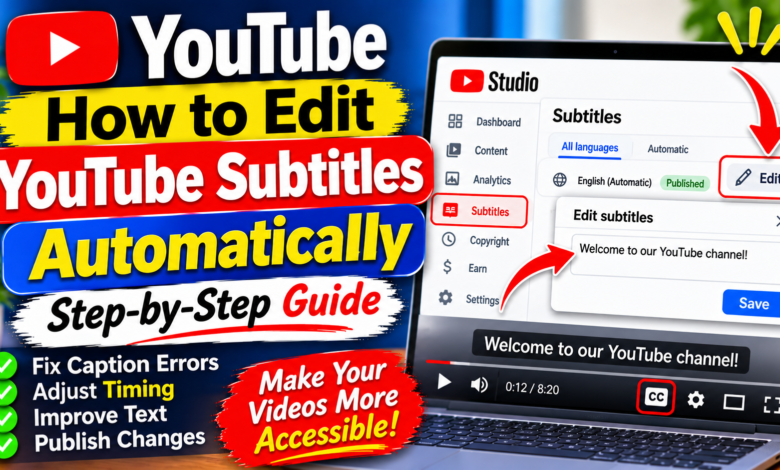
How to Edit YouTube Subtitles Automatically: A Step-by-Step Guide
YouTube subtitles make videos easier to understand and more accessible to viewers. They are especially helpful for people watching without sound, viewers who speak different languages, and people who prefer reading along while watching a video. YouTube can automatically generate captions for eligible videos, but these captions may contain spelling mistakes, incorrect words, or timing errors.
The good news is that you can edit automatically generated subtitles directly in YouTube Studio. You do not need expensive editing software or advanced technical skills.
In this guide, you will learn how to edit YouTube subtitles automatically, correct caption mistakes, adjust timing, and publish accurate subtitles for your audience.
1. What Are Automatically Generated YouTube Subtitles?
Automatically generated subtitles are captions created by YouTube’s speech recognition technology. YouTube analyzes the audio in your video and attempts to convert spoken words into text.
These captions can save creators time because they do not have to type every sentence manually.
However, automatic captions are not always perfect. Background noise, unclear pronunciation, accents, technical terms, and multiple speakers can cause errors.
For this reason, reviewing and editing automatic subtitles is important before relying on them as an accurate transcript.
2. How to Find Automatic Subtitles in YouTube Studio
The first step is to locate the automatically generated captions for your uploaded video.
Follow these steps:
- Open YouTube in a web browser.
- Sign in to the account that owns your channel.
- Open YouTube Studio.
- Click Subtitles in the left-side menu.
- Find the video you want to edit.
- Select the video to open its subtitle settings.
- Look for the language marked as automatic or automatically generated.
- Open the available subtitle track.
YouTube may take some time to generate captions after a video is uploaded. If automatic subtitles are not available yet, check again later.
3. How to Edit YouTube Subtitles Automatically
Once you find the automatic subtitle track, you can correct its text and make it easier to understand.
Here is how to edit it:
- Open YouTube Studio.
- Select Subtitles from the left menu.
- Choose your video.
- Find the automatically generated subtitle track.
- Open the track’s editing option, if available.
- Review the displayed caption text.
- Correct incorrect words and spelling mistakes.
- Check punctuation and sentence structure.
- Review the timestamps.
- Click Publish when your corrections are complete.
The exact buttons may vary depending on the subtitle track and YouTube Studio interface.
Always review the video alongside the transcript. This helps you confirm that the written captions match what the speaker actually says.
4. How to Correct Spelling and Grammar Mistakes
Automatic captions sometimes misunderstand words, especially when speakers talk quickly or use technical vocabulary.
For example, YouTube might recognize a software name incorrectly or replace a technical term with an unrelated word.
To improve your subtitles:
- Correct misspelled words.
- Replace incorrectly recognized names and technical terms.
- Add punctuation where sentences naturally end.
- Use proper capitalization.
- Remove unnecessary repeated words when they are transcription errors.
- Keep the original meaning of the speaker’s message.
Do not rewrite the speaker’s message unnecessarily. Subtitles should accurately represent the spoken content rather than introduce information that was not in the video.
5. How to Adjust Subtitle Timing
Correct words are important, but timing matters too. Captions should appear when the speaker says the words and disappear when the relevant speech ends.
To improve subtitle timing:
- Open the subtitle editor.
- Play the video from the beginning of the section.
- Compare the spoken words with the displayed captions.
- Find captions that appear too early or too late.
- Adjust their start and end times using the available editor controls.
- Preview the corrected section.
- Repeat the process wherever necessary.
Avoid displaying captions for too long after a speaker has finished talking. Similarly, do not make captions disappear before viewers have enough time to read them.
6. How to Review Automatic Subtitles Before Publishing
Before publishing your changes, watch the video and follow the subtitles carefully.
Check these important points:
- Are all spoken words written correctly?
- Are names and technical terms accurate?
- Do captions match the speaker’s timing?
- Is punctuation used correctly?
- Are sentences divided into readable sections?
- Are important words missing?
- Do captions cover multiple speakers clearly?
Pay extra attention to sections with background music, fast speech, or unclear audio.
A complete review helps reduce caption errors and provides a better viewing experience.
7. How to Publish Edited YouTube Subtitles
Editing subtitles does not necessarily mean your changes are already visible to viewers. You must publish the edited subtitle track.
Follow these steps:
- Open the video’s subtitle editor in YouTube Studio.
- Finish correcting the caption text.
- Review the timing and formatting.
- Click Publish.
- Wait for YouTube to save the changes.
- Open your video and check the captions.
If the editor shows a Save or Publish option, follow the prompt displayed for your subtitle track.
After publishing, viewers can use the captions option in the video player when subtitles are available.
8. What to Do If YouTube Does Not Generate Automatic Subtitles
Sometimes automatic captions are unavailable. This can happen for several reasons, including unsupported languages, unclear audio, a video that is still processing, or other eligibility limitations.
Try these steps:
- Wait for the video to finish processing.
- Check whether the spoken language is supported.
- Make sure the audio is clear enough to understand.
- Reduce background noise in future recordings.
- Check the Subtitles section again later.
- Upload a subtitle file manually if automatic captions are unavailable.
You can also create subtitles using a transcription tool and upload a supported caption file, such as an SRT file.
9. Tips for Getting More Accurate Automatic Subtitles
You can improve caption accuracy by making your videos easier for speech recognition technology to understand.
Use these practical tips:
Record clear audio: Use a good microphone and avoid unnecessary background noise.
Speak naturally: Avoid speaking too quickly or mumbling.
Pronounce technical terms clearly: Product names, software names, and unusual words may need manual correction.
Reduce background music: Keep music low enough that it does not overpower the speaker.
Review every subtitle track: Never assume automatically generated captions are completely accurate.
These habits can reduce editing time and improve the quality of your subtitles.
10. Common Mistakes to Avoid When Editing YouTube Subtitles
Many creators make small mistakes that affect subtitle quality.
Avoid these common problems:
- Publishing captions without reviewing them.
- Leaving incorrect names or technical terms.
- Ignoring timing errors.
- Adding too much text to a single caption.
- Removing important spoken information.
- Forgetting to publish the corrected subtitle track.
- Assuming automatic captions are available for every video and language.
Take a few minutes to review your subtitles before publishing. Accurate captions make your videos more useful and accessible.
Conclusion
Editing automatically generated YouTube subtitles is a simple way to improve the quality and accessibility of your videos. YouTube Studio lets creators review automatic captions, correct spelling mistakes, adjust timing, and publish improved subtitle tracks.
Start by opening the Subtitles section in YouTube Studio and selecting the video you want to edit. Review the automatic captions carefully, make the necessary corrections, and publish your changes.
Remember that automatic captions are a helpful starting point, not a replacement for proofreading. Clear audio and careful editing will help you provide more accurate subtitles and a better experience for your viewers.