How to Add Chapters to YouTube Videos: Easy Guide
How to Add Chapters to YouTube Videos: Easy Guide

How to Add Chapters to YouTube Videos: A Complete Beginner’s Guide
YouTube chapters make videos easier to navigate by dividing them into clearly labeled sections. Instead of watching an entire video to find one specific topic, viewers can jump directly to the information they need. Chapters are especially useful for tutorials, educational videos, product reviews, interviews, podcasts, and long-form content.
The good news is that adding chapters does not require special software. You can create them directly through your YouTube video description by adding timestamps and chapter titles. YouTube also offers an automatic chapters feature for eligible videos.
In this guide, you will learn how to add YouTube chapters manually, enable automatic chapters, format timestamps correctly, and fix common problems.
1. What Are YouTube Video Chapters?
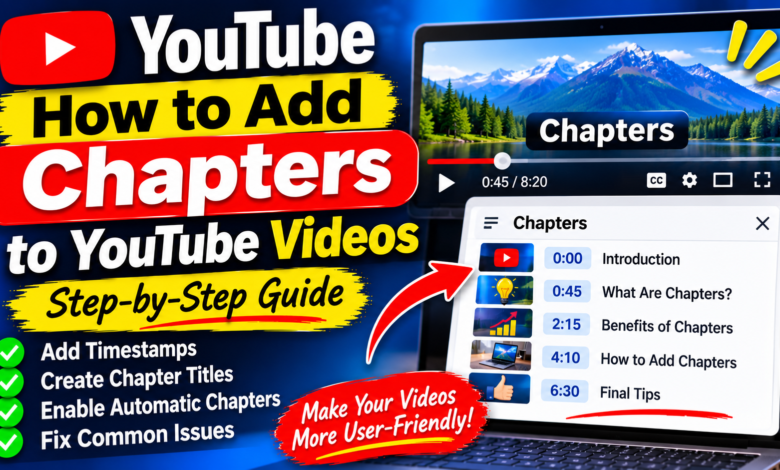
YouTube chapters are sections of a video that appear along the video progress bar. Each chapter has a timestamp and a title explaining what that part covers.
For example, a tutorial about starting a YouTube channel might include these chapters:
- 00:00 Introduction
- 00:35 Creating Your Channel
- 01:45 Choosing a Channel Name
- 03:10 Adding a Profile Picture
- 04:30 Customizing Channel Settings
- 06:00 Final Tips
When viewers click a chapter, YouTube takes them directly to that section of the video.
Chapters help viewers understand a video’s structure and find relevant information without searching manually.
2. Why Should You Add Chapters to YouTube Videos?
Adding chapters can improve the viewing experience, especially when your videos cover several topics.
Here are some important benefits:
- Easier navigation: Viewers can jump to the section they want.
- Better organization: Chapters give your video a clear structure.
- Improved user experience: People can find useful information faster.
- Clearer content: Chapter titles explain what each section covers.
- Convenient learning: Viewers can revisit specific lessons or instructions.
Chapters do not guarantee more views or higher search rankings. However, they can make useful content easier to explore and navigate.
3. How to Add Chapters to YouTube Videos Manually
The easiest way to create chapters is by adding timestamps and titles to your video’s description.
Follow these steps:
- Open YouTube in your browser.
- Sign in to your YouTube account.
- Open YouTube Studio.
- Select Content from the left-side menu.
- Find the video you want to edit.
- Click the video’s title or thumbnail.
- Scroll to the Description box.
- Add your timestamps and chapter titles on separate lines.
- Click Save.
YouTube uses these timestamps to create chapters on the video progress bar.
Remember that manually added chapters override automatically generated chapters.
4. Follow YouTube’s Chapter Formatting Rules
Your timestamps must follow YouTube’s requirements. If the formatting is incorrect, chapters might not appear.
Keep these rules in mind:
- The first timestamp must start at 00:00.
- Your video must contain at least three timestamps.
- Timestamps must appear in chronological order.
- Each chapter must be at least 10 seconds long.
- Every timestamp should have a meaningful chapter title.
For example, this is a correctly formatted chapter list:
Example:
00:00 Introduction
00:40 What Are YouTube Chapters?
01:30 Benefits of Video Chapters
02:45 How to Add Chapters
04:20 Common Mistakes
05:30 Final Tips
Use the actual starting times from your video rather than copying these example timestamps.
5. How to Find the Correct Timestamps
Accurate timestamps are important because they take viewers to the correct part of your video.
To find them:
- Open your uploaded video.
- Play it from the beginning.
- Note the time whenever a new topic starts.
- Write down the timestamp.
- Create a short title describing that section.
- Repeat this process for every major topic.
You can also use your video editing software to check the timeline and identify where each section begins.
Avoid adding too many chapters. Focus on the main topics that viewers may want to find quickly.
6. How to Enable Automatic YouTube Chapters
YouTube can generate chapters automatically for eligible videos. This means you may not need to create every timestamp yourself.
To check the setting:
- Sign in to YouTube Studio.
- Open Content.
- Select the video you want to edit.
- Click Show More in the video settings.
- Find the Automatic Chapters section.
- Select Allow automatic chapters (when available and eligible).
- Click Save.
This option is enabled by default for new uploads, but you should check the setting if automatic chapters are not appearing.
Not every video is eligible, and YouTube does not guarantee automatic chapters for every eligible video.
7. How to Add Chapters to a New YouTube Video
You can add chapters while uploading a new video. You do not need to wait until the video is published.
Follow this process:
- Open YouTube Studio.
- Click Create and select Upload videos.
- Choose your video file.
- Enter the video title and description.
- Add your chapter timestamps and titles to the description.
- Complete the remaining upload settings.
- Choose your visibility option.
- Publish or schedule the video.
Check the chapter list carefully before publishing. Correct timestamps make it easier for viewers to navigate your content from the beginning.
8. Tips for Writing Better Chapter Titles
Chapter titles should be short, clear, and relevant to the section they describe.
Use these tips:
- Keep titles simple: Avoid long and confusing descriptions.
- Describe the topic: Tell viewers exactly what they will find.
- Use consistent wording: Follow a similar style throughout the list.
- Avoid misleading titles: Make sure each title matches the video content.
- Highlight important sections: Give useful topics clear and specific names.
For example, instead of writing “More Information,” use “How to Customize Your Channel.”
Clear chapter titles help viewers understand the structure of your video.
9. Common YouTube Chapter Problems and How to Fix Them
Sometimes chapters do not appear even after you add timestamps. Here are some common problems and possible solutions.
Problem 1: The first timestamp does not start at 00:00
Your first timestamp must begin at 00:00. Check the description and correct it if necessary.
Problem 2: You added fewer than three timestamps
YouTube requires at least three timestamps for manually created chapters. Add more sections that accurately match your video.
Problem 3: Chapters are too short
Each chapter must be at least 10 seconds long. Adjust timestamps so that every section meets the minimum duration.
Problem 4: Timestamps are not in the correct order
Arrange timestamps from the beginning of the video to the end. Do not place a later timestamp before an earlier one.
Problem 5: Automatic chapters are not appearing
Check whether automatic chapters are allowed in the video’s settings. Keep in mind that YouTube may decide a video is not eligible.
YouTube also states that chapter access may be unavailable if a channel has active strikes or the content may be inappropriate for some viewers. If you do not have access to chapters, check whether your channel needs access to Advanced features.
10. Can You Edit or Remove YouTube Chapters?
Yes. You can update or remove manually added chapters whenever you need.
To edit chapters:
- Open YouTube Studio.
- Select Content.
- Choose the video.
- Find the Description box.
- Change the timestamps or chapter titles.
- Click Save.
To remove manually added chapters, delete the timestamp list from the description and save your changes. If automatic chapters are enabled and the video is eligible, YouTube may generate automatic chapters instead.
11. Best Practices for Using Chapters on Your Channel
For the best results, add chapters to videos where they genuinely help viewers.
Consider these practices:
- Plan your chapters before publishing a video.
- Add timestamps for major topics rather than every small detail.
- Use accurate timestamps that match the video.
- Keep chapter titles short and descriptive.
- Review the video after saving to confirm that chapters appear correctly.
- Update the chapter list whenever you make significant changes to your video.
Tutorials, educational videos, reviews, podcasts, and detailed guides are often good candidates for chapters.
Conclusion
Adding chapters to YouTube videos is a simple way to organize your content and make it easier for viewers to navigate. You can create chapters manually by adding timestamps and titles to your video description, or allow YouTube to generate chapters automatically when available and eligible.
Always start your manual chapter list at 00:00, include at least three timestamps, arrange them in the correct order, and make sure every chapter is at least 10 seconds long.
With clear titles and accurate timestamps, you can create a more organized and user-friendly viewing experience for your audience.