
How to Add a Custom URL to YouTube Channel: Easy Guide
How to Add a Custom URL to YouTube Channel: Easy Guide

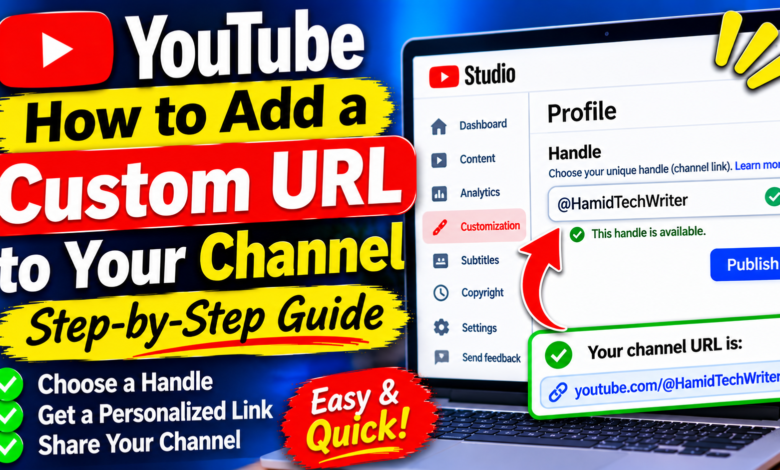
How to Add a Custom URL to YouTube Channel: Step-by-Step Guide
Having a professional YouTube channel URL makes it easier for people to find and share your channel. A short, memorable link also helps you build a recognizable identity across your website, social media profiles, and other online platforms.
YouTube has changed how personalized channel URLs work. The old custom URL system is no longer available for creating new URLs. Instead, YouTube uses handle URLs, such as youtube.com/@YourChannelName.
The good news is that you can choose or change your YouTube handle and get a personalized channel link automatically.
In this guide, you will learn how to add a custom-style URL to your YouTube channel, change your handle, check its availability, and share your new channel link.
1. What Is a YouTube Custom URL?
A YouTube custom URL is a personalized web address that makes it easier for viewers to visit your channel.
Older YouTube channels may have links like:
youtube.com/c/ChannelName
However, YouTube no longer allows creators to set up new custom URLs or change existing ones. Existing custom URLs continue to work and redirect visitors to the channel’s handle-based URL.
Today, creators can use a handle URL, which looks like this:
youtube.com/@ChannelName
A handle is a unique identifier that starts with the @ symbol. It is different from your channel’s display name because multiple channels can have similar display names, but each handle must be unique.
2. How to Add a Custom URL to YouTube Channel
Although the old custom URL feature is unavailable, you can create a personalized channel link by choosing a YouTube handle.
Follow these steps:
- Open YouTube in your web browser.
- Sign in to your YouTube account.
- Open YouTube Studio.
- Click Customization in the left-side menu.
- Select Profile (or the Basic info section if that label appears).
- Find the Handle option.
- Enter your preferred handle.
- Check whether the handle is available.
- Click Publish to confirm your changes.
YouTube automatically creates a personalized URL based on your selected handle.
For example, if your handle is @TechGuideWorld, your channel URL will look like:
youtube.com/@TechGuideWorld
You can copy this link and share it with your audience.
3. How to Choose a Good YouTube Channel URL
Your handle should be simple, professional, and easy to remember. A good handle helps viewers recognize your channel and find it more easily.
Use these tips when choosing your handle:
- Keep it short: Short handles are easier to remember and share.
- Use your channel name: Try to keep your handle consistent with your brand.
- Avoid unnecessary numbers: Random numbers can make your URL difficult to remember.
- Choose simple words: Avoid complicated spellings and excessive symbols.
- Stay consistent: Use a similar name on your website and social media platforms.
For example, a technology tutorial channel might choose a handle such as @TechGuideWorld or @EasyTechTips, if available.
Choose a handle that represents your channel’s main topic and identity.
4. How to Check If Your YouTube Handle Is Available
YouTube handles must be unique. This means another channel cannot use the exact same handle at the same time.
To check availability:
- Open YouTube Studio.
- Select Customization.
- Open Profile.
- Find the Handle field.
- Enter your preferred name.
- Check the availability message.
- Try another version if your preferred handle is unavailable.
If someone has already selected your preferred handle, try adding a relevant word, period, underscore, or number.
For example, if @TechTips is unavailable, you might try @TechTipsGuide, provided it meets YouTube’s requirements and is available.
5. What Are YouTube Handle Requirements?
Before choosing a handle, make sure it follows YouTube’s naming guidelines.
Important requirements include:
- Handles are generally between 3 and 30 characters.
- A handle must be unique.
- It cannot violate YouTube’s handle policies.
- It must not imitate another person or brand in a misleading way.
- Certain special characters and formatting combinations are restricted.
YouTube supports handles in multiple languages, but some character combinations have different requirements.
It is a good idea to choose a handle that is easy to type and recognize, especially if you plan to share it outside YouTube.
6. How to Change an Existing YouTube Channel URL
If you already have a handle but want a different channel link, you can change your handle.
Follow these steps:
- Sign in to YouTube Studio.
- Click Customization.
- Select Profile.
- Find the Handle section.
- Enter your new preferred handle.
- Check its availability.
- Click Publish to save the change.
Your new handle automatically creates a new handle URL.
YouTube allows you to change your handle twice within a 14-day period. Your previous handle is held for 14 days after a change, giving you an opportunity to switch back. During that period, both the old and new handle URLs can work.
Remember to update your channel links on your website, social media profiles, email signature, and other platforms where you have shared the old address.
7. How to Copy and Share Your YouTube Channel URL
After choosing your handle, you can share your personalized channel link with viewers.
Here is how:
- Open your YouTube channel page.
- Copy the URL from your browser’s address bar.
- Check that it includes your @ handle.
- Paste the link into your social media profile, website, or messages.
Your link will look similar to:
https://www.youtube.com/@YourHandle
You can also find your handle URL in YouTube Studio under Customization → Profile.
Sharing this link makes it easier for people to visit your channel directly.
8. Can You Still Use an Old YouTube Custom URL?
Yes. If your channel already has an older custom URL, you can continue using it.
For example, an older address such as:
youtube.com/c/YourChannelName
can still direct visitors to your channel.
However, YouTube automatically redirects old personalized URLs to the newer handle-based channel address. You cannot create a new old-style custom URL or edit an existing one.
If you want a different public channel address, changing your handle is the correct option.
9. Common YouTube Custom URL Problems and Solutions
Sometimes creators cannot select their preferred handle. Here are some common problems and ways to solve them.
Problem 1: Your preferred handle is unavailable
Another channel may already be using it. Try adding a relevant word or a small variation.
Problem 2: You cannot find the custom URL option
YouTube has replaced the old custom URL setup with handles. Open Customization and look for the Handle section.
Problem 3: Your new URL is not working immediately
Check that you published the handle change and copied the correct URL. Refresh your channel page and try again.
Problem 4: Your old custom URL looks different
This is normal. Existing custom URLs redirect to your handle-based URL.
Problem 5: You cannot change your handle again
YouTube limits handle changes to twice within a 14-day period. Wait until the restriction period has passed if you have reached the limit.
Conclusion
Adding a personalized URL to your YouTube channel is now done through the handle system. YouTube no longer supports creating new traditional custom URLs, but you can choose a unique handle and automatically receive a professional channel link.
Open YouTube Studio, go to Customization, select Profile, and enter your preferred handle. Once you publish it, your personalized URL will be ready to share.
Choose a short, memorable handle that matches your channel identity. It will make your channel easier to recognize and help viewers find you across different platforms.